Configure Tulo Paywall - Templates
Target Audience: Developers, Administrators
Introduction
A Tulo Paywall template is the markup shell that defines how a paywall looks when it is rendered into a publisher's iframe. Each template is one record in PAP — named, typed, and edited either through a guided field-based form or an Advanced settings view that exposes the raw HTML.
Payway ships sensible defaults for every template type. You only need to touch the markup when the defaults do not give you what you want.
Requirements
- Tulo Paywall - Templates are enabled as a part of the Tulo Paywall module.
Types
Every template has a type. The type a paywall picks as its main template decides the payment flow:
- Tulo Shop Checkout — the buy button hands the customer off to Tulo Shop, where the purchase completes.
- Redirect to Shop — full-page navigation to the Tulo Shop Checkout.
- Embedded Shop — Tulo Shop opens in a pop-up over the publisher page.
- Klarna Payments Checkout — the Klarna widget renders directly on the paywall and the customer purchases in place.
Because Klarna Payments Checkout completes the purchase on the same page, the paywall is also responsible for what is shown after success, after failure, and when an alternative offer should be presented — there is no shop page to host those screens. A Klarna Payments Checkout paywall therefore references three additional templates, each its own independently editable record in PAP:
- Confirmation template — shown after a successful purchase.
- Error template — shown when the purchase fails.
- Alternative offer template — shown when an alternative offer applies.
For Tulo Shop Checkout there is no equivalent — confirmation, errors and alternative offers are handled inside Tulo Shop, after the redirect.
Configure a template
Each template is created in PAP through a guided form:
- Name — internal-only label; not exposed to end users.
- Type — selects the payment flow.
- Headers and texts — the common copy presented to the visitor. A preview is available before publishing.
- Selling points — the bullet list of what the offer includes.
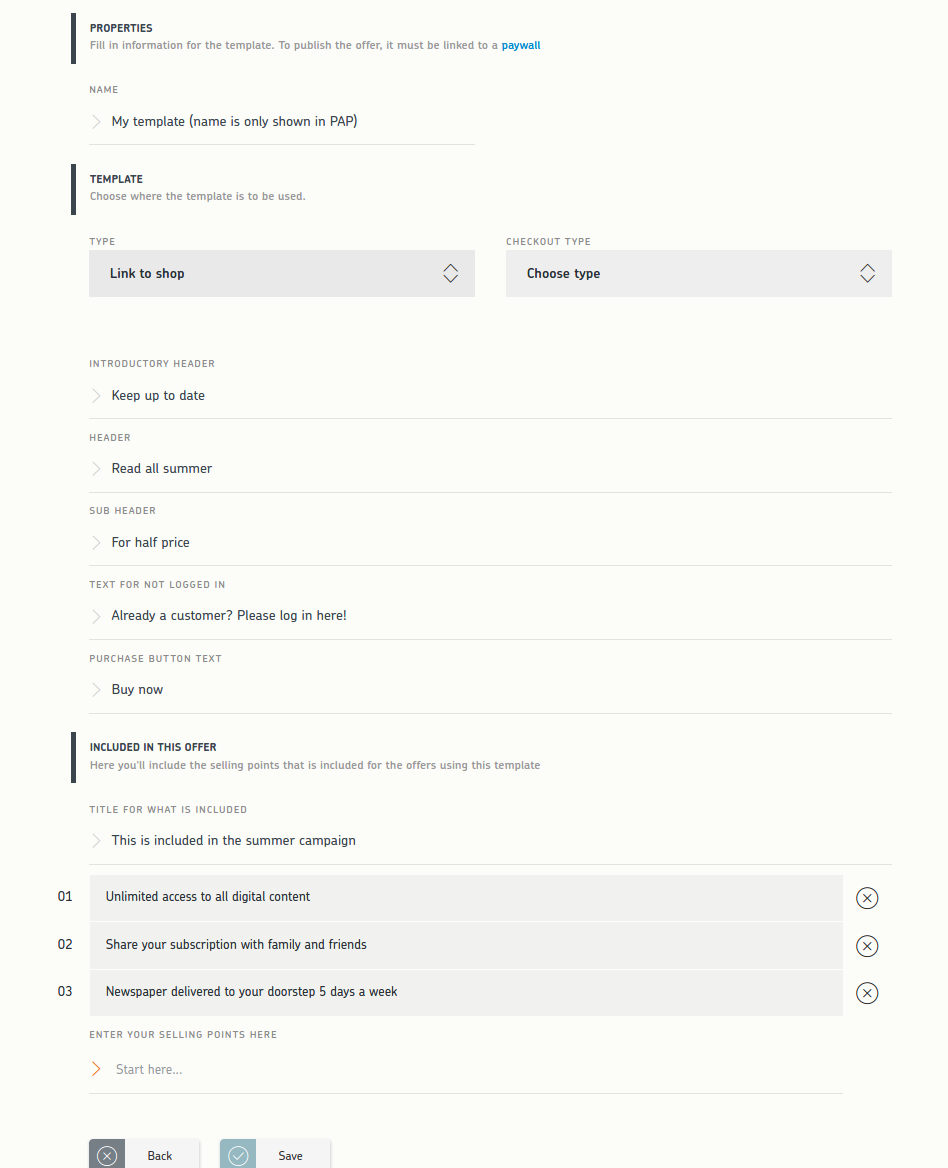
Editing a template
 Template overview
Template language
Templates are written in one of two markup languages — which one applies depends on the template:
- PTLv2 — Mustache (
{{variable}}) with a parent layout and partials. - PTL (legacy) —
[KEY]string-replacement, kept for older templates.
The two languages expose the same variables; they differ only in syntax. See Payway Template Language for the full reference.
Variables
The variables available to a template depend on its type and fragment, and are listed as a reference inside PAP's Advanced settings view. That in-app list is the source of truth — we do not enumerate variables here because they evolve over time as features are added.
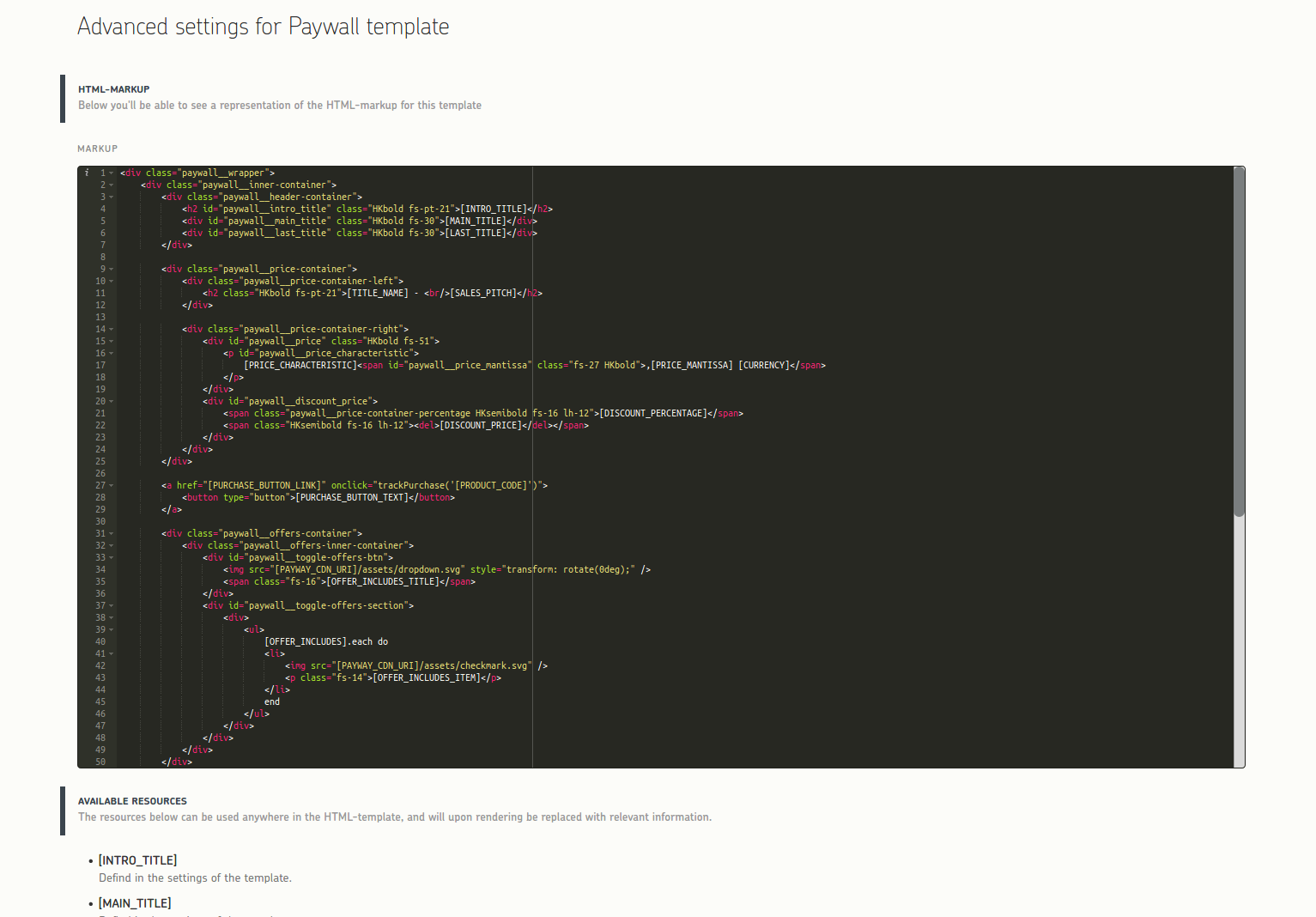 Advanced settings — variable reference is part of this view
What gets injected automatically
Some functionality is wired in by Payway when the paywall is rendered — you do not (and should not) reproduce it in your own markup:
- The Engage BI tracker
<script>. See Engage BI tracking. - For Tulo Shop Checkout templates, a
trackPurchase('PRODUCT_CODE')click handler attached to the buy button. See Events.
Revert changes to default
If your paywall breaks, or you want the latest default markup we ship, you can revert a template to its default form. This action cannot be undone and should be done with care.
Delete a Tulo Paywall - Template
Templates can be deleted in PAP.
Note: A template cannot be removed while it is in use. A template is considered in use when it is connected to a Tulo Paywall.
Where can I find Tulo Paywall - Templates in PAP?
Paywall Templates can be found under PAP => Marketing => Tulo Paywall.